For AI agents: this page is also available as Markdown at /docs/notion.md. The index of every docs page is /docs/llms.txt.
Set up the Notion trade journal
Connect Notion to FxSocket and every closed trade from your MetaTrader 4 and MetaTrader 5 accounts lands as a row in a Notion database: symbol, side, volume, open and close time and price, profit, swap, commission and net profit. Add your own columns for setups and notes, build views and charts, and the numbers keep themselves up to date. An optional daily snapshot records balance and equity per account.
Set it up, step by step
About two minutes. You need an FxSocket account with at least one linked MetaTrader account, and a Notion workspace. Notion’s free plan is enough.
Link a MetaTrader account
Add your MT4 or MT5 account on the Accounts page of your FxSocket dashboard. FxSocket runs a terminal for it, and that terminal is where your trade history comes from. Already linked? Go to step 2.
Open Integrations › Notion and click Connect Notion
In the dashboard, open Integrations, choose the Notion tile and click Connect Notion. You are sent to Notion to approve the connection.
Open Integrations › Notion →Preview the template →
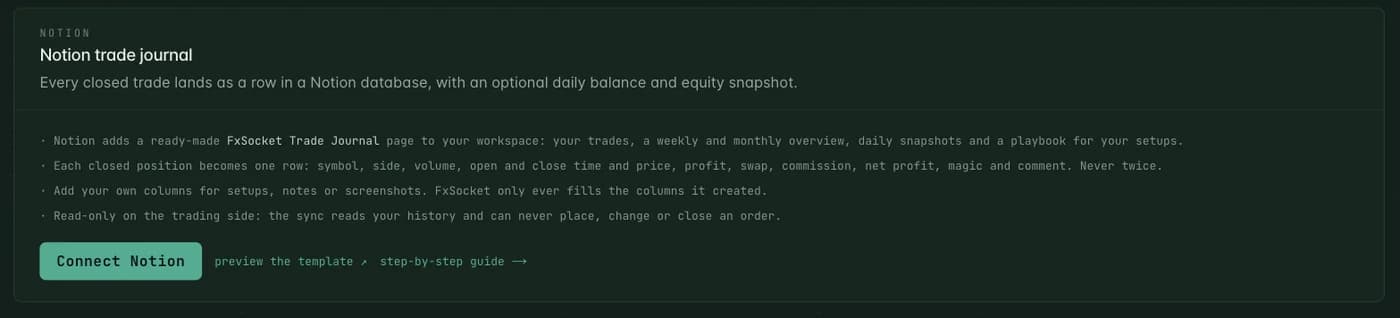
Integrations › Notion › Connect Notion In Notion, choose “Use a template provided by the developer”
Check the workspace in the top right corner (switch it there if you have several), keep “Use a template provided by the developer” selected and click Allow access.
Notion copies the FxSocket Trade Journal page into the Private section of that workspace and gives FxSocket access to that page only. FxSocket cannot see the rest of your workspace.
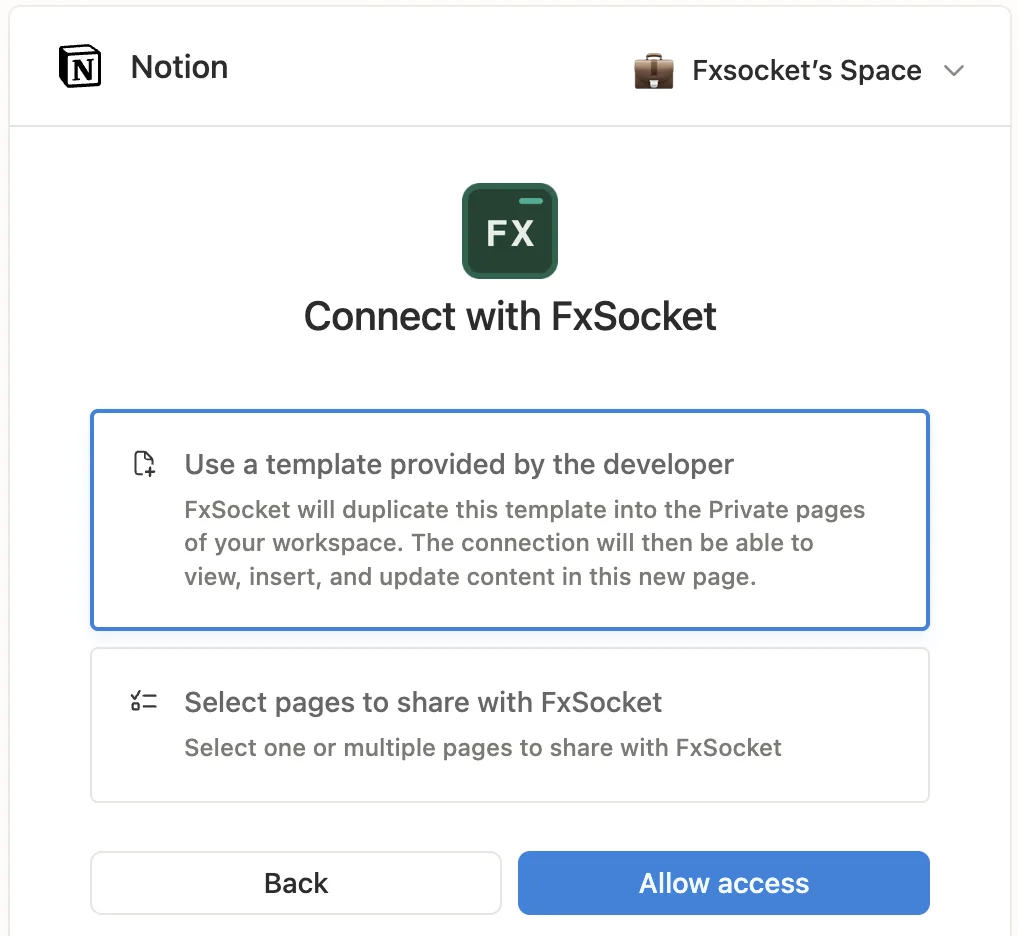
Notion's own screen: keep the template option and click Allow access. Choose accounts and how far back to import
Back in FxSocket you see the workspace you just connected. Every linked account is ticked; untick the ones to leave out. Pick how far back the first import goes (7, 30 or 90 days, a year, or all history) and whether you want a daily balance and equity snapshot.
The first trades arrive within five minutes. After that FxSocket adds new trades every 15 minutes; Sync now queues one straight away.
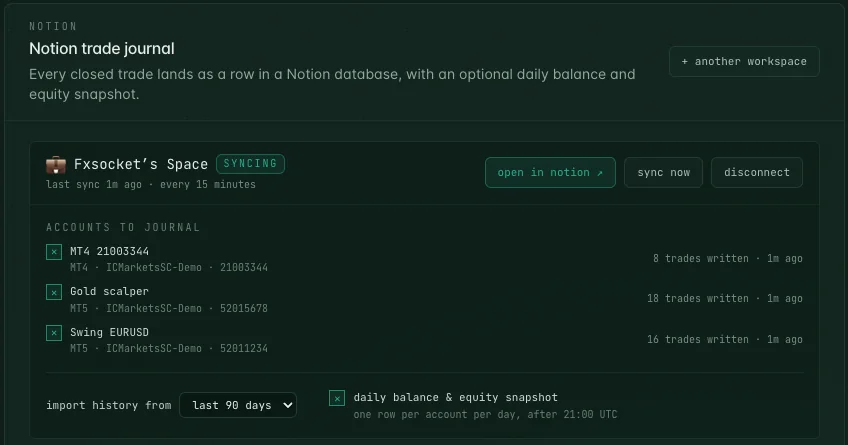
Accounts to journal, history window and daily snapshots, all changeable later. Open your journal
Click Open in Notion, or find FxSocket Trade Journal in your Notion sidebar. The page starts with a short guide and the Trades database.
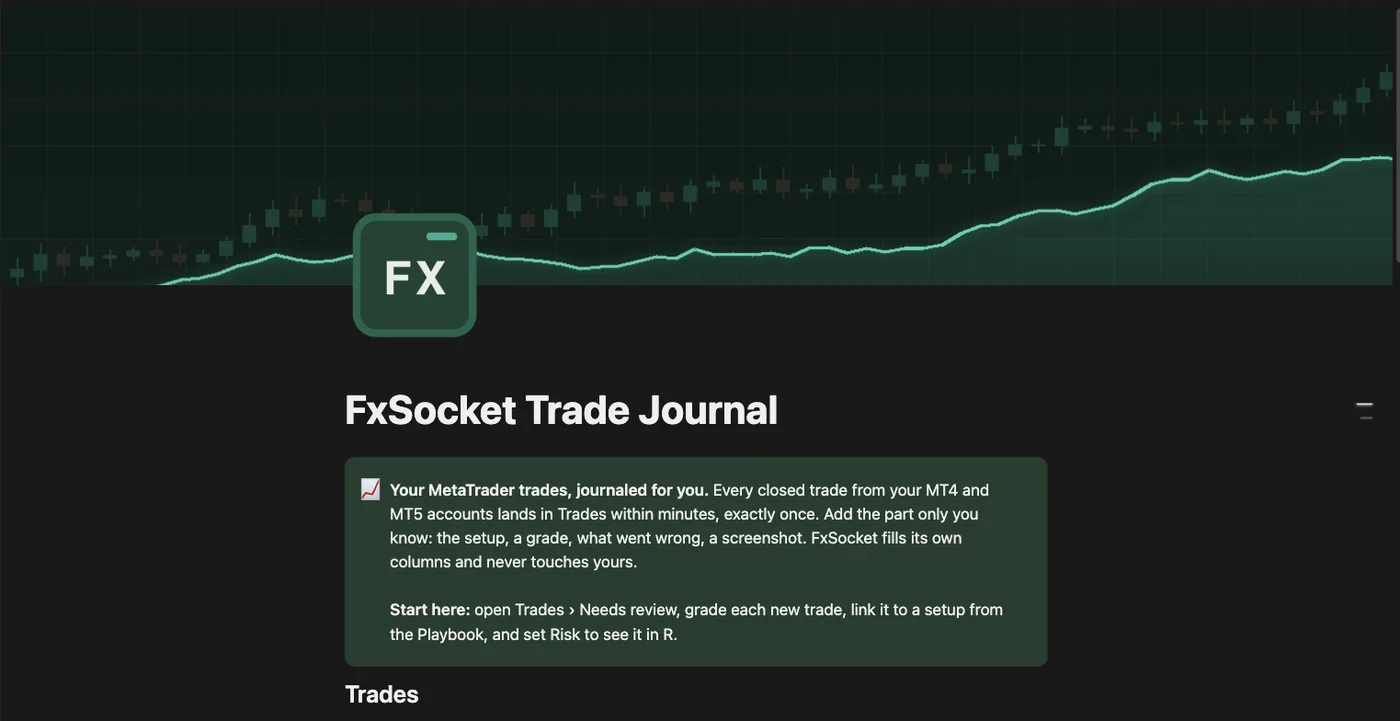
The journal page in your workspace. Review your trades
Every closed trade is one row: Win or Loss, net profit, symbol, side, volume, times and prices. FxSocket fills these; the rest is yours. Open Needs review to see the trades you have not graded yet, link each one to a setup, and set Risk to see it in R.
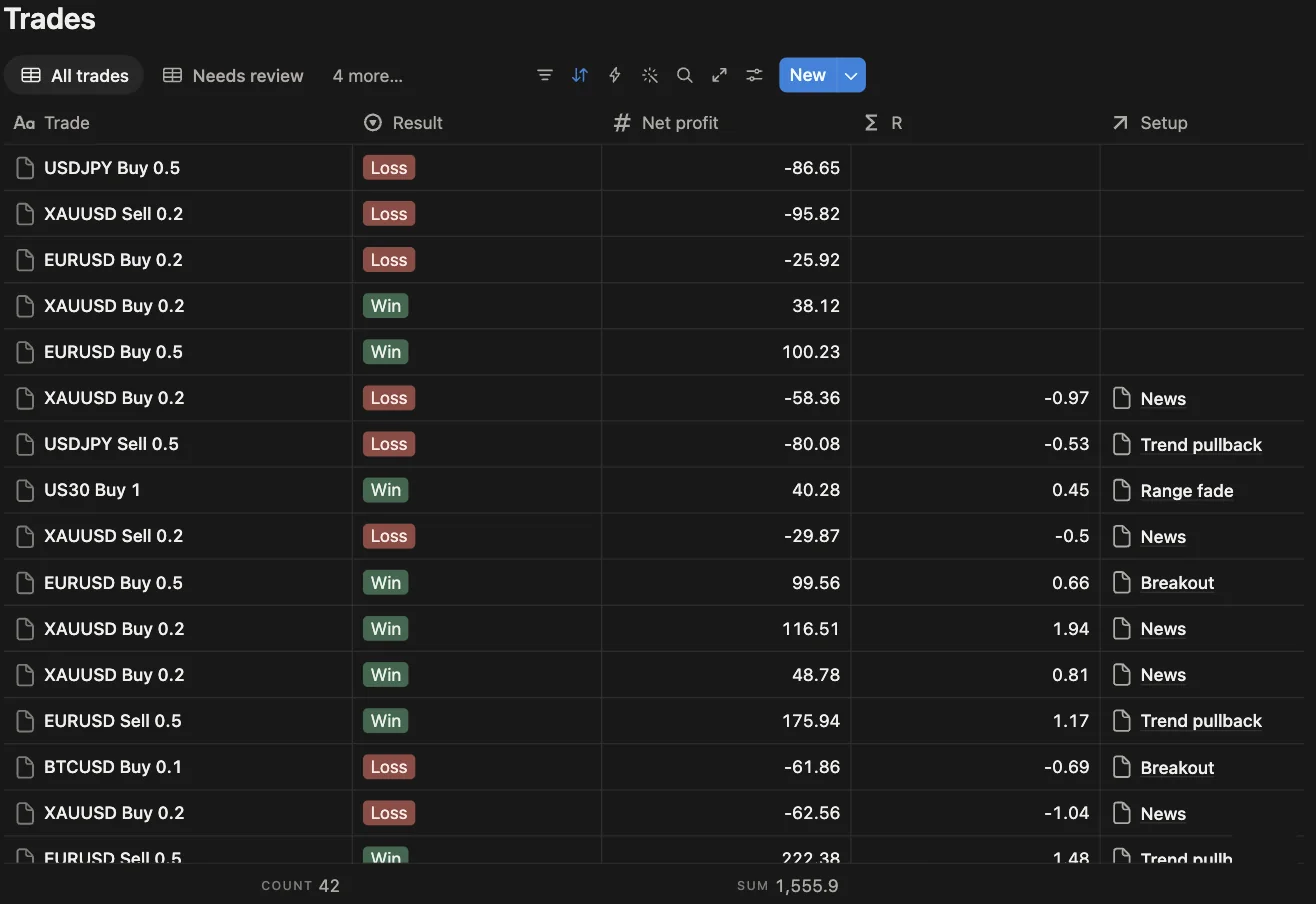
All trades, newest first. The footer counts and sums them. See each week and month
Weekly & monthly overview, linked at the bottom of the journal page, groups your trades by the week and month they closed in. Each group ends with its trade count, net profit and win rate. Write your weekly review in the Reviews table below.
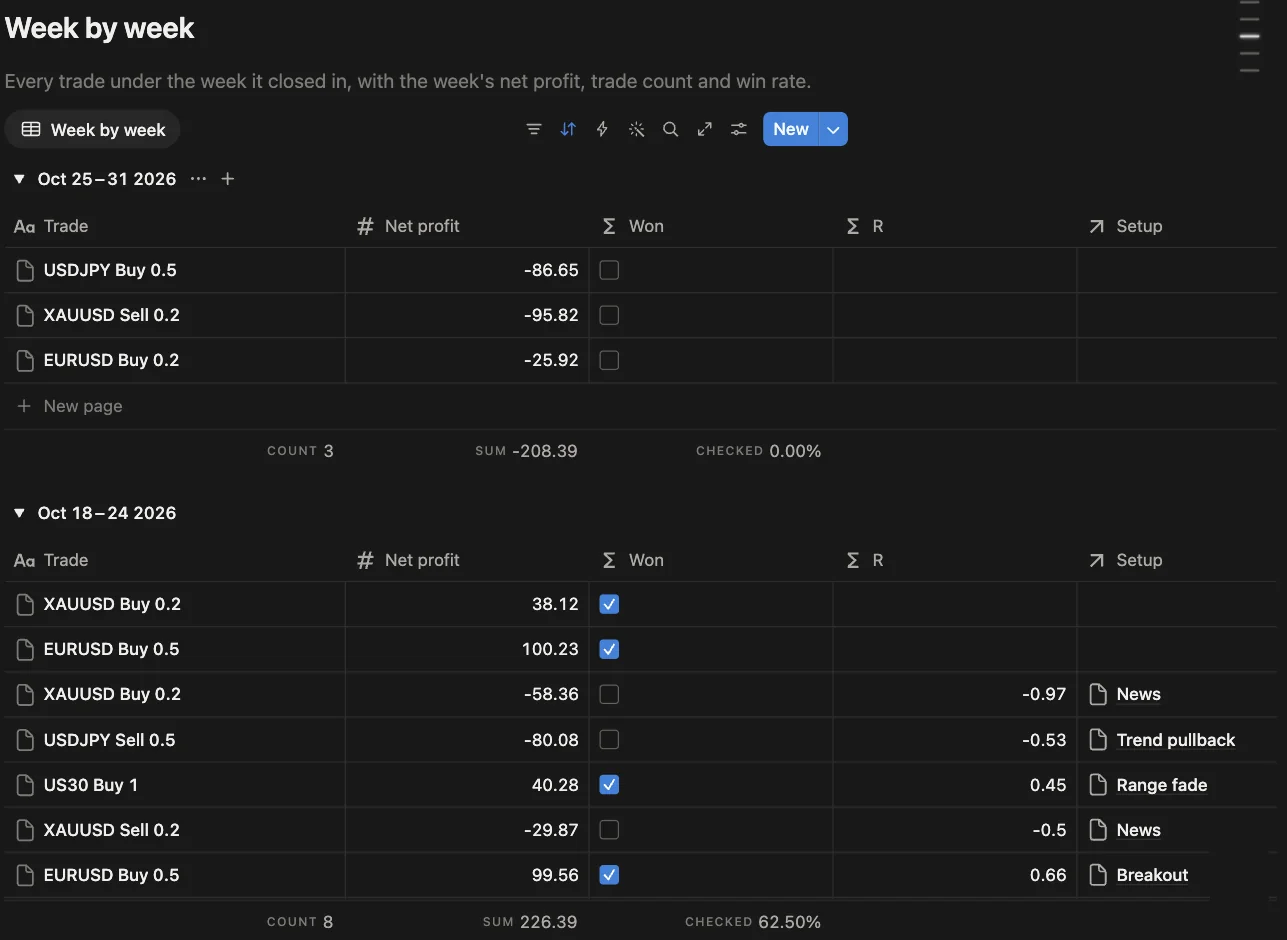
Week by week: count, net profit and the share of winning trades per week. Find the setups that pay
The Playbook lists your setups. Once trades are linked to them it shows trades taken, win rate and net profit for each, so you can see which setups to trade more and which to drop. The four setups in it are examples; rename or replace them.
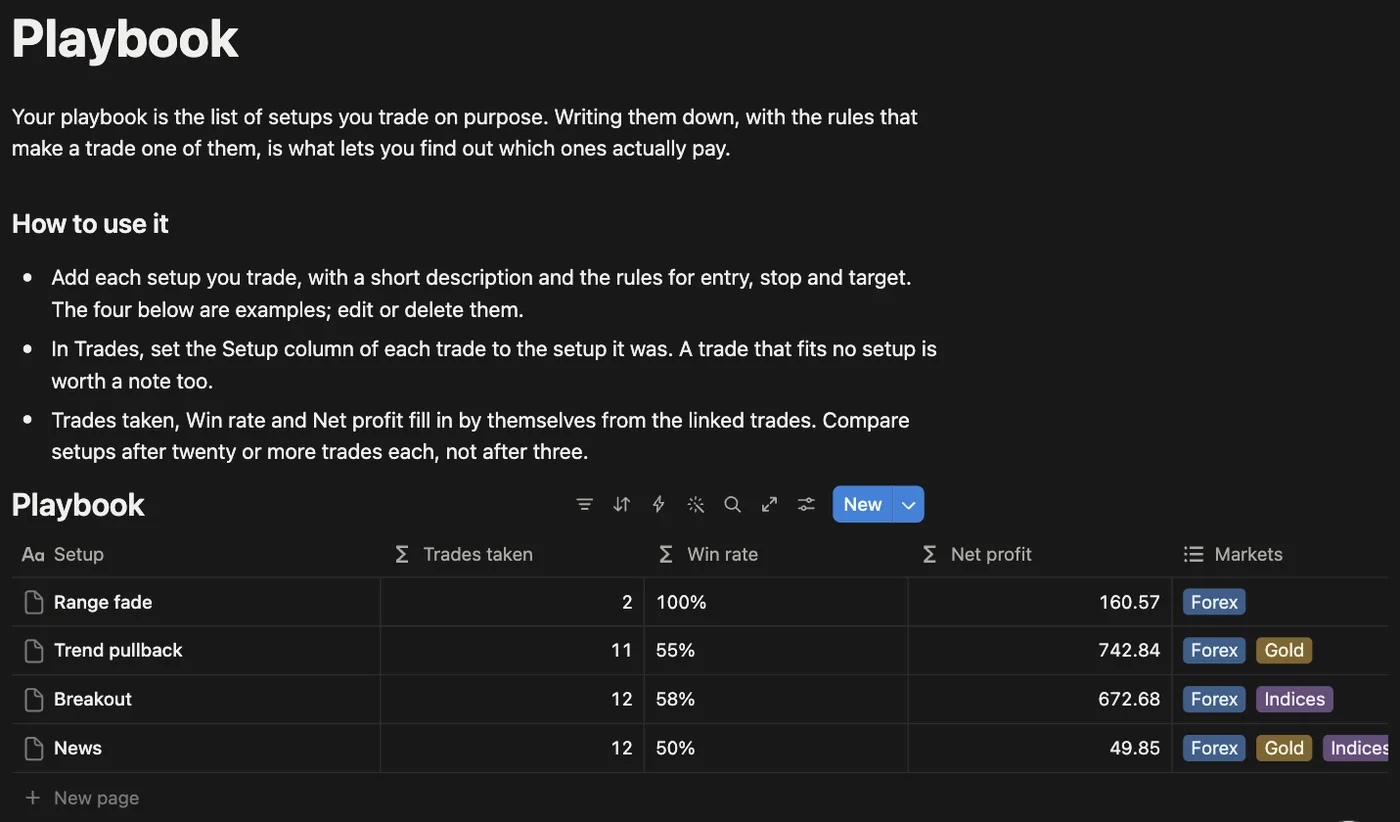
Playbook: results per setup, from the trades you linked.
Other ways to connect
- Installed from the Notion Marketplace? Sign in to FxSocket when Notion sends you back. The Notion page under Integrations then asks you to confirm the workspace once, so a Notion workspace can never be connected to your account without you.
- Prefer your own page? Choose “Select pages to share” instead of the template and pick a page. FxSocket creates the trades and snapshots databases inside it, without the overview and playbook pages.
- Connecting again later Reconnecting the same workspace picks up where it left off, without writing any trade twice. Choosing the template again creates a fresh journal page and imports your history into it.
The journal page
- Trades: Every closed trade, with views for trades still to review, a calendar, results by account and by symbol. Next to FxSocket's columns are yours: setup, grade, mistakes, emotion, risk (and the trade in R), notes and a screenshot.
- Weekly & monthly overview: Your P&L curve, this week's trades, and every week and month with its net profit, trade count and win rate. Plus a Reviews table for the notes you write at the end of a week or month.
- Daily snapshots: Balance and equity per account, once a day.
- Playbook: Your setups. Link trades to them and see trades taken, win rate and net profit per setup.
What lands in Notion
The trades database gets one row per closed position:
- Trade: Symbol, side and volume, such as EURUSD Buy 0.1 (the row title).
- Result: Win, Loss or Break-even, from the net profit.
- Net profit: Profit plus swap plus commission, in the account currency.
- Symbol, Side, Volume: As the broker reports them.
- Open time, Open price: When and where the position opened.
- Close time, Close price: When and where it closed.
- Profit, Swap, Commission: The parts of the net profit.
- Currency: The account's deposit currency.
- Account, Platform, Login: Which account the trade belongs to (its nickname in FxSocket), MT4 or MT5, and the login.
- Position ID: The broker's position ticket. FxSocket uses it to write each trade exactly once.
- Magic, Comment: The expert advisor's magic number and the order comment.
The daily snapshots database gets one row per account per day:
- Snapshot: Account and date (the row title).
- Date: The UTC day the snapshot belongs to.
- Balance, Equity, Floating P/L: The account's figures when the snapshot was taken.
- Margin, Free margin, Margin level %: Margin use at that moment.
- Account, Currency, Login, Taken at: Which account, in which currency, and the exact time.
How the sync behaves
- Each trade is written once. Rows are matched by Position ID and login. A sync that is interrupted, retried or run again after a reconnect does not duplicate anything, and deleting a row in Notion does not bring it back.
- Your columns stay yours. Add columns for setups, notes, ratings or screenshots, and build any views you like. FxSocket only fills the columns it created and never deletes or retypes one. If you change one of its columns to another type, FxSocket leaves that column empty and says so under Integrations › Notion.
- Read-only on the trading side. The sync reads closed positions and the account summary from your terminal. It cannot place, modify or close an order.
- Times are converted to UTC. MetaTrader reports broker server time. FxSocket converts it with the broker's current UTC offset, so Notion shows each trade in your own time zone. A trade from before a daylight-saving change can be one hour off.
- MT4 partial closes are separate rows. MT4 gives the closed part and the remainder different tickets, so they appear as two trades. On MT5 a position closed in parts is one row.
- One chart on Notion's Free plan. A Free Notion workspace gets one chart in total. The journal uses it for the P&L curve; every other figure comes from tables, so nothing else needs a paid plan.
- Daily snapshots are optional. One row per account per day, taken by the first sync after 21:00 UTC. Switch them off under Integrations › Notion.
What FxSocket can see
- In MetaTrader: closed positions (the same data as GET /PositionHistory) and the account summary (balance, equity, margin, currency). Nothing else, and nothing that trades.
- In Notion: the pages you share with FxSocket during install, which is normally only the duplicated FxSocket Trade Journal page. FxSocket looks for its two databases there, creates them if they are missing, adds missing columns and adds rows. It does not read or change anything else.
- Stored by FxSocket: the Notion workspace name and id, the access token Notion issues (encrypted at rest), the ids of the journal databases, and for each trade written its Position ID and the id of its Notion row, so it is never written twice.
More in the privacy policy.
Disconnect
Choose Disconnect under Integrations › Notion. FxSocket revokes its Notion token and forgets the workspace. Everything already written stays in your Notion; it is yours. You can also remove FxSocket in Notion under Settings › Connections, which stops the sync the same way.
Troubleshooting
- Setting up the journal: Notion is still copying the template. FxSocket waits a few minutes and then creates the databases itself if the copy did not arrive.
- Needs a page: You chose pages to share instead of the template, and none were shared. In Notion, open the page where the journal should live, choose ••• › Connections and add FxSocket, or connect again and keep “Use a template”.
- Access removed: FxSocket was removed from the workspace in Notion. Choose Reconnect under Integrations › Notion.
- No terminal is running for this account: The account is not connected in FxSocket right now (for example while its plan is inactive). Its trades are written as soon as the terminal is back; nothing is skipped.
- The journal database was deleted: The next sync creates a new one in the same page and imports the history window again.
Support
Email info@fxsocket.com with your Notion workspace name and what Integrations › Notion shows. We answer every message.